Library
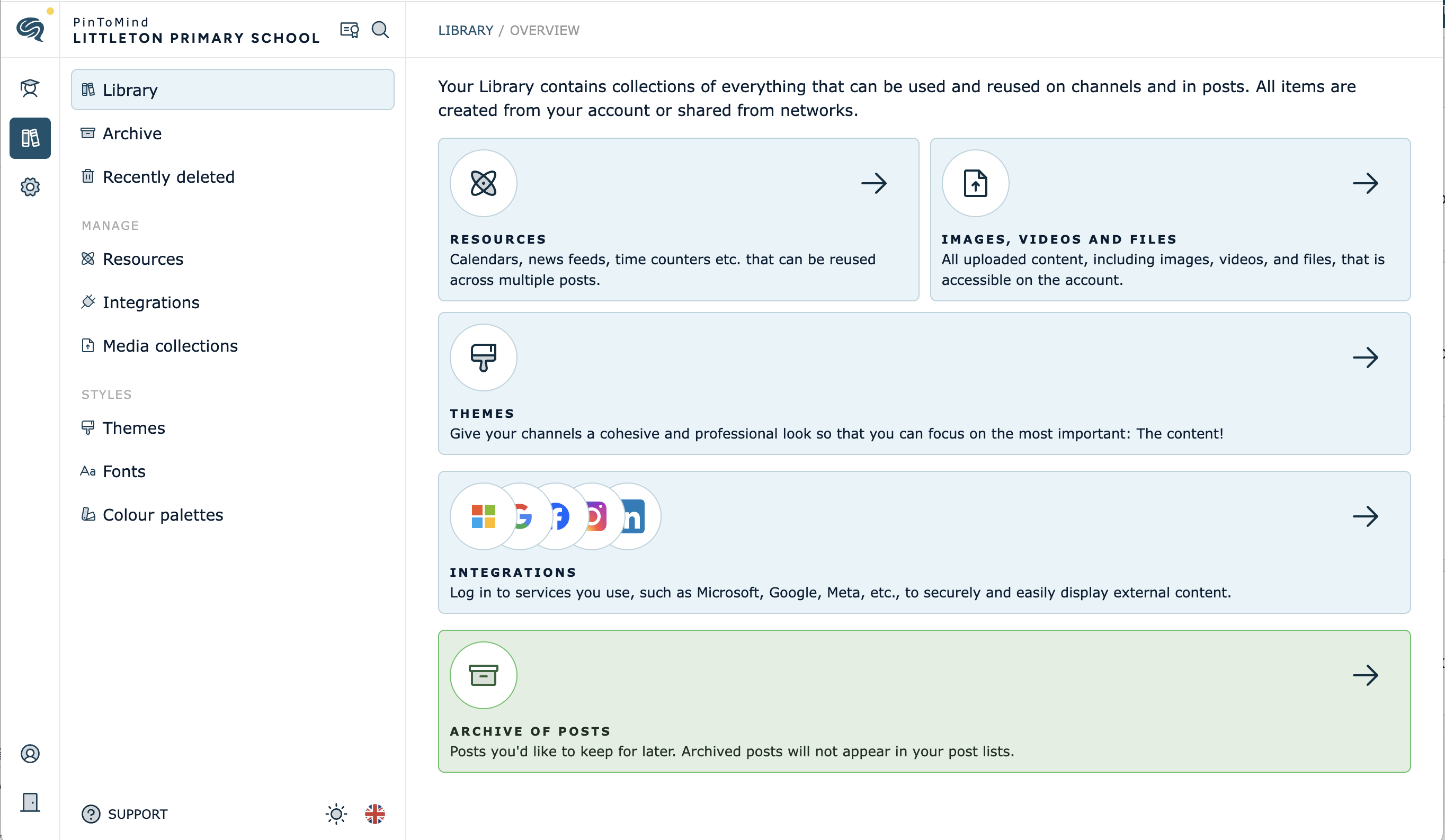
ℹ️ In the Library (📚 in the left sidebar) of your PinToMind account, you can find and create collections of media, integrations, and resources that can be used and reused across channels and in posts. You can find both what has been uploaded and created on your account, and what has been shared with your account via networks.
Media (images, videos, gifs) you upload will be saved in the library and can be reused across multiple posts. The same goes for any integrations, themes, color palettes, fonts, and resources (e.g. calendars, social media links, news feeds, time counters, weather forecasts, websites, external images, etc.) that you and other users create on your account.
GO TO:
- Keep your images and media files organized with media collections
- Create new media collection
- Restrict user access to a media collection
- Copy or move media files between collections
- Download media files from PinToMind
💡 In Media Collections you can also:
- Add name and description to media files
- Set a custom thumbnail on videos
Keep your images and media files organized with media collections
Do you have a lot of images and media files? Create media collections and organize them into folders so you can quickly find what you need the next time you need to create a post.
You can add media to default media collections, or you can create new media collections that you can customize and name. The collections you create will be available when you create a new post, in the relevant post types.
Create new media collection
- Go to the Library (📚 in the left sidebar).
- Select "Media collections".
- Select "+ New media collection".
- Customize icon, enter collection title and select category (Logo, Background, Video or Image).
-
Click "Save".
Once the media collection is saved, you will return to the list of all media collections you have access to.
- Click "Edit" on the media collection and upload media files from your device.
Restrict user access to a media collection
- Go to the Library (📚 in the left sidebar).
- Select "Media collections".
- Select "Edit" on the collection.
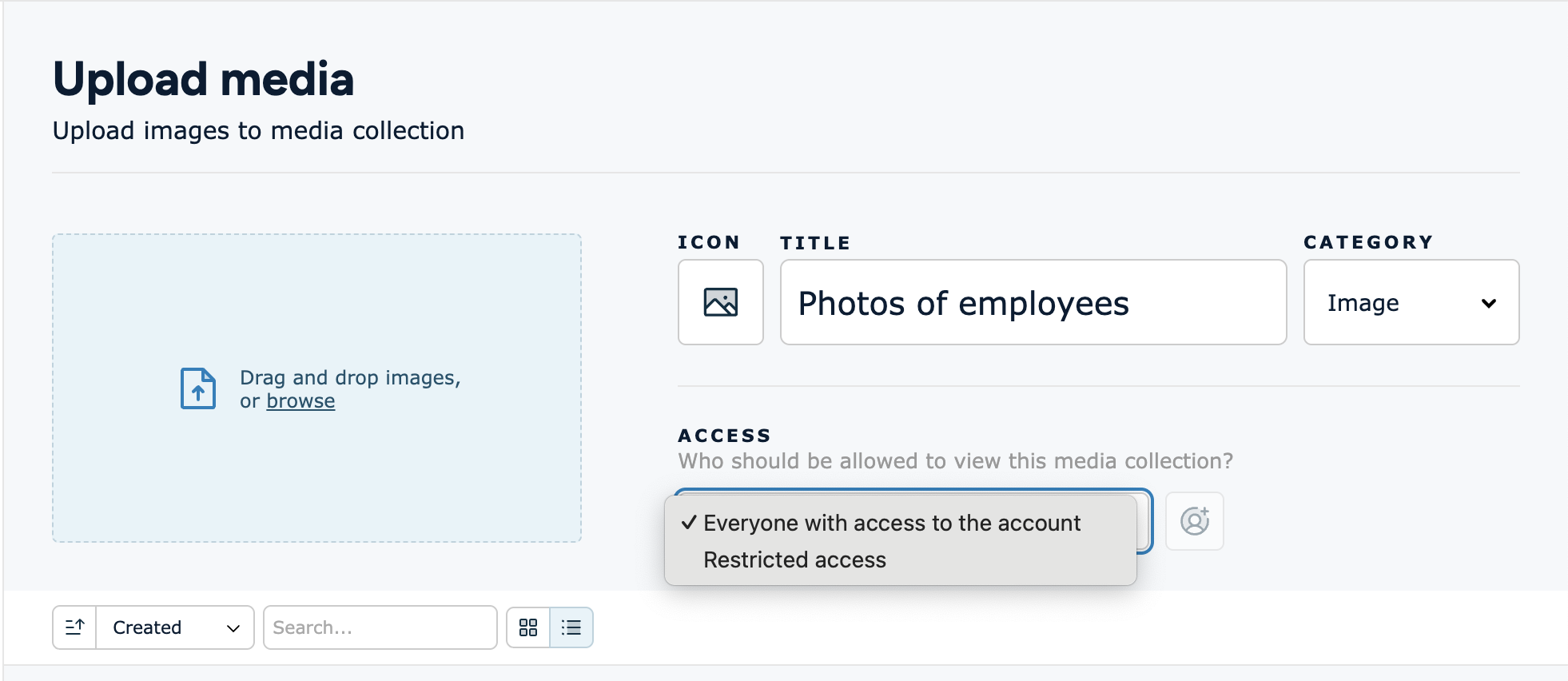
- Change "Everyone with access to the account" to "Restricted access".
- Click on the user icon and select who on the account can view and use the media collection. Account Owner and Admin always have access.
Copy or move media files between collections
- Go to the Library (📚 in the left sidebar).
- Select "Media collections".
- Select "Edit" on the collection.
- Click "⚙️ Settings" on the media file, or select multiple media files on the left to copy or move several files at once.


Download media files from PinToMind
- Go to the Library (📚 in the left sidebar).
- Select "Media collections".
- Select "Edit" on the collection.
- Click "⚙️ Settings" on the media file.
- Go to the bottom of the sidebar on the right and select "Download".
Questions? Contact us at support@pintomind.com!