Create a Poll
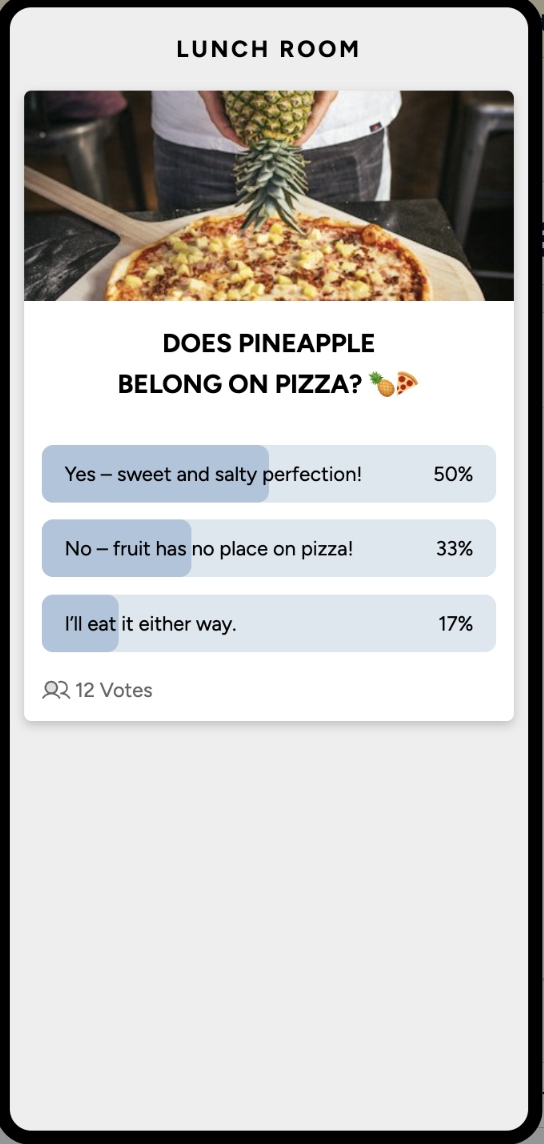
ℹ️ Poll is the post type where you can ask a simple question and get responses via the PinToMind Go app. The audience votes in the app, and the results are displayed on the screen.
There is also the option to hide results until a date and set a response deadline.
Note: Polls only work with the PinToMind Go mobile app.
Create a Poll
- Go to "+ New Post" and select "Poll"
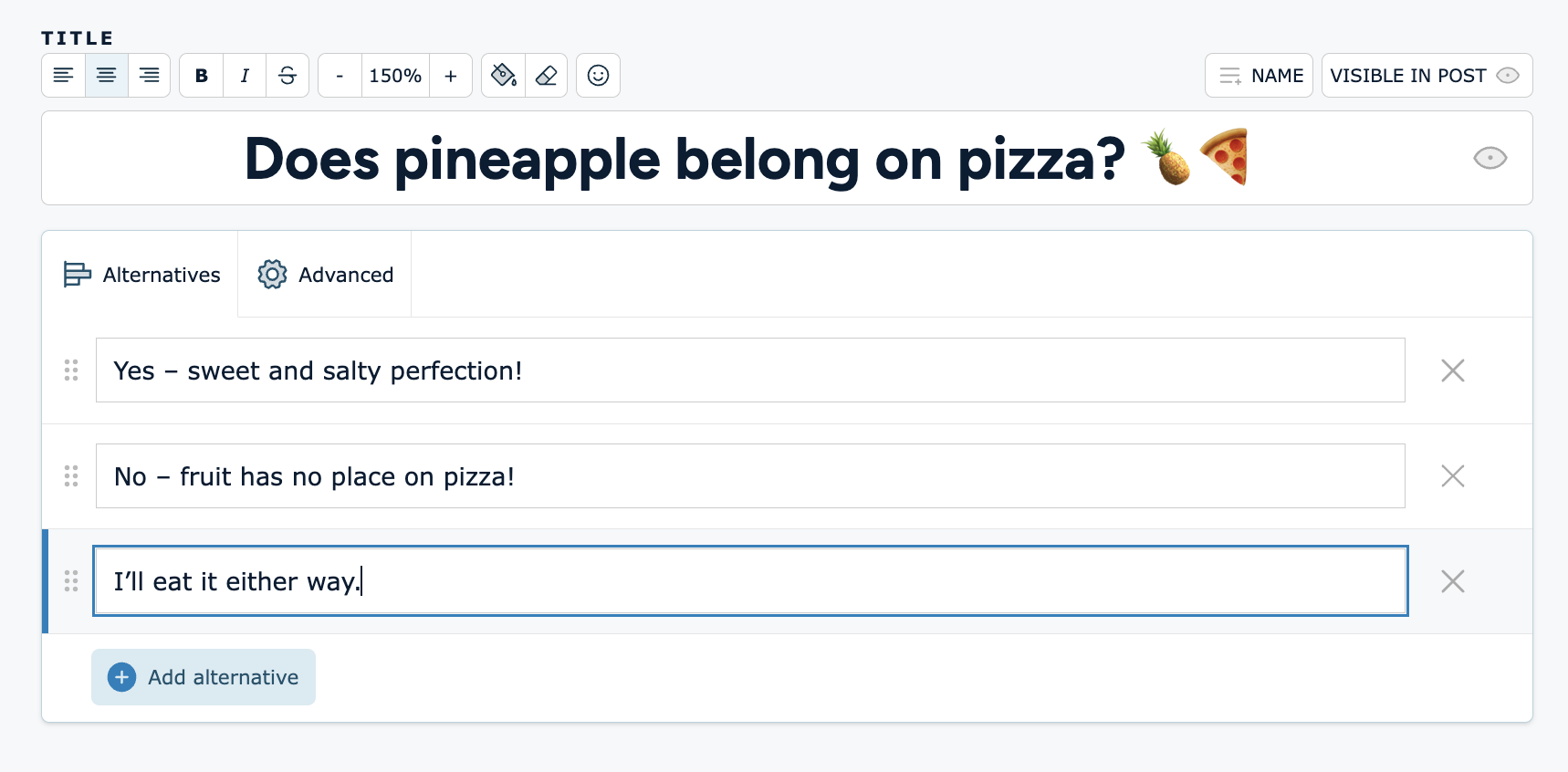
- Enter the question you want your audience to answer.
-
Add alternatives. You can add as many as you like.
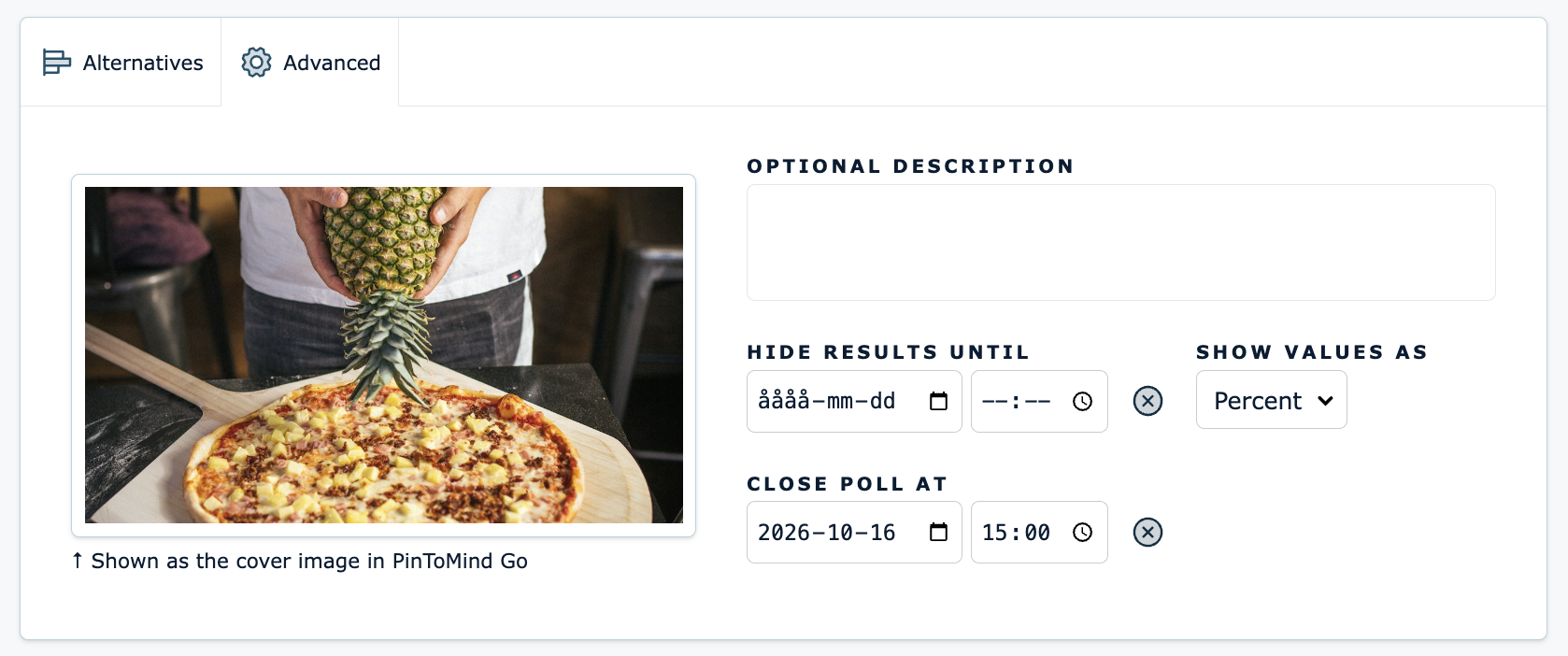
- In the ⚙️ Advanced tab you can:
- Add an image that displays in the mobile app (not on screen).
- Add a description if you want to provide more information or explain the question in more detail.
- Choose whether values should be displayed as percentages or numbers.
- Choose when to show results. You can hide results until a specific date.
-
Set a response deadline if you want to limit how long it is possible to vote.
- Select channel(s) you want the post displayed on.
- Set Duration and add Priority, select End Date and/or Scheduling.
- If you want to send a push-notification to those who subscribe to this content on their mobile devices, select push-notification.
- Preview the post in order to see what it will look like on your channel(s) and in the mobile app (the first preview shows a fictitious result). Click outside the preview in order to return to the editing page.
- Save the post.
How your audience votes
- All voting takes place in the relevant post in the PinToMind Go app. Each mobile device can cast one vote per poll, even if the user follows several Go channels where the Poll post is published.
- When someone casts a vote, the updated results are sent to the screen after approximately 10 seconds. The new votes appear the next time the display is shown on the screen.
- Users can go back and change their vote.
- Votes from all PinToMind Go channels are combined into one overall result, which is shown everywhere the post is published.
Questions? Contact us at support@pintomind.com!